- prepare debian bootable usb.
- Windows 管理ツール→コンピュータの管理→ディスクの管理
- Windows(©:)右クリック
- →領域を縮小(日本語(英語も?)分かりにくい):縮小量100GB:実際には97.66GBの未設定領域が作られた。finish?して
- 未設定領域を右クリック→simple volume ウィザード→ドライブF:が作成される
- resize and make simple volume debian 90GB
- Because deian installer is so good at disk partitioning, I chose leave everything to it, so that I removed the debian volume leaving 87.89GB unallocated disk partiion.
- Increas winC volume, leaving 78.13GB freespace.
「debian」カテゴリーアーカイブ
devian install DVD-2 and 3
as root apt-cdrom add -d /media/your_username with sudo sudo apt-cdrom add -d /media/$USER Next apt-get update
for my case: /media/cdrom
Backup and Restore using SystemRescueCD (2)
Boot SystemRescueCD (ver6.0.3)
- Default system is fine.
- %setkmap
- Terminal may not have clear visibility, you don’t have to isuue ‘startx’
- %mkdir /mnt/backup
%mount /dev/sdb5 /mnt/backup - cd /mnt/backup and mkdir there for backup images
- Run partimage and just follow instructions.
- tab-key, space-bar and Enter-key are used and type text where needed.
- Restore steps are almost same, except one choice (backup or restore) in partimage program.
systemrescuecd backup and restore (1)
Preparation
#df
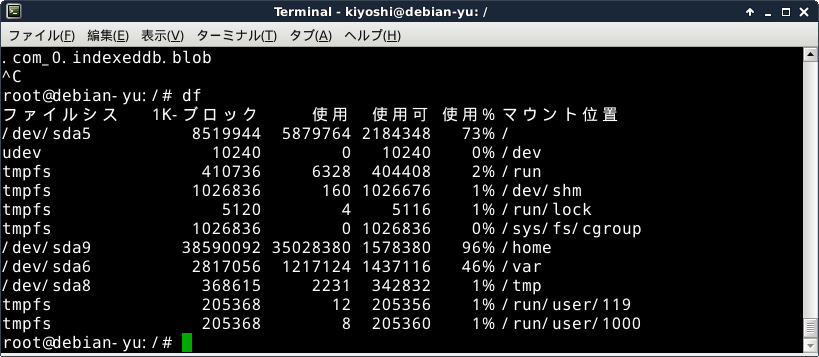
From this, I undesrstand I should backup sda5 (/), sda6(/var) and sda9(/home), and also their sizes.
#fdisk-l
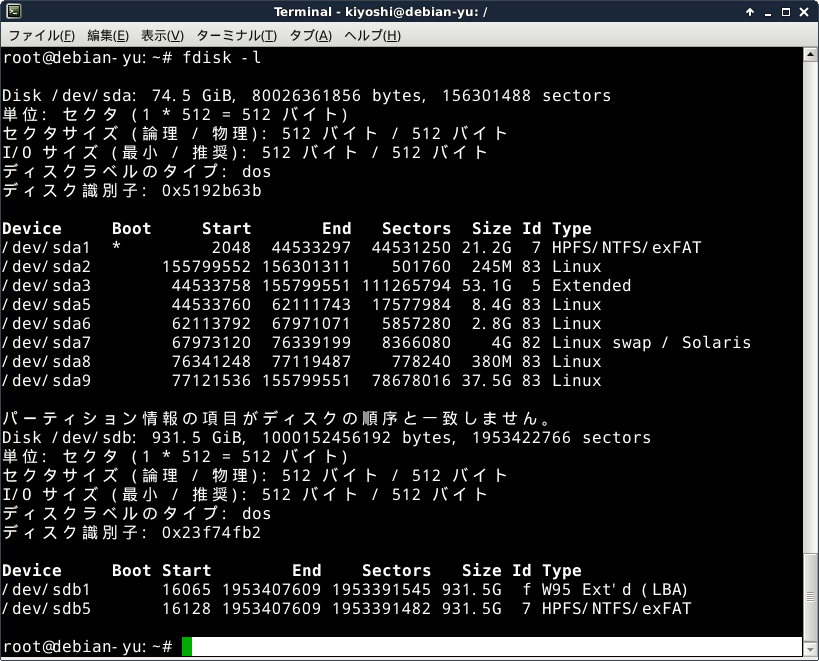
#lsblk
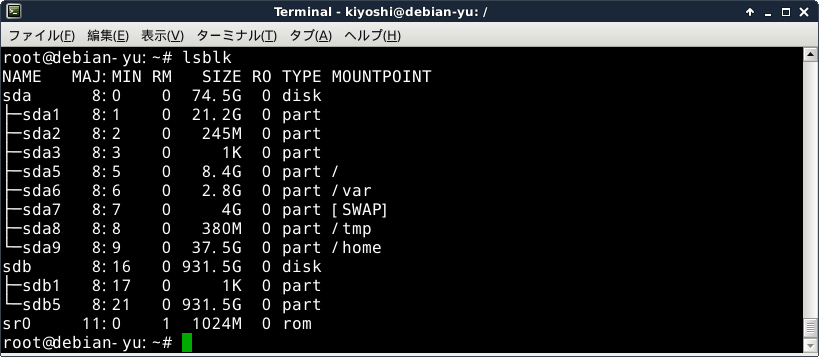
From this, I understand sdb is the extra disk and sdb5 is its filesystem partition. Thus I should mount dev/sdb5 as the backup storage.
Debian on Kiyoshi-New-Lavie
1.make free partition on Windows:
1.1 コンピュータの管理→ディスクの管理→WinC:(右クリック)shirink volume :~90GB
2.Debian9.9.0-amd64-iso-DVD boot
3.Aborted due to disc error, which turned out to be iso file downloading error.
4.Try again with bittorrent downloading and checked with sha256 checksum (in this case not necessary) and burned by ImgBurn with verify. Successful but cannot realize dual boot.
5 minitool registraion was used up. Forced to attempt MBR recover using SystemRescueCD.
6. Boot SysResCD 64bit
6,1 /roo% fsarchiver prob simple
you will find sda5 has ext4 with label unknown:
% mkdir -p /mnt/linux
% mount -r /dev/sda5 /mnt/linux
check that linux exists:
% ls -l /mnt/linux/sbin/init
it does exist, it is a link:
/mnt/linux/sbin/init -> /lib/systemd/systemd
But;
BOOT.SDI is only one entry in boot directory
SysytemRescueCD @2019.04.30
New version on DVD seems working on new kiyoshi-ravie. Seems very powerful.
New version on DVD does not work on Epson Endeavor probably because DVD boot is not handled on this old xp machine.
Old version on CD seems working on Endeavor.
zonbie
$ ps -ef | grep defunct
$ kill -KILL PID
my IP address
$ hostname -I
$ /sbin/ifconfig
There are more way.
python3.5.2 to Debian8
This probably refers to common way of install software from source.
Installing Python manually is possible. As an example, you can use the following instructions to install 3.5.2 version
Prerequisites
Install dependencies :
sudo apt-get update && sudo apt-get install libssl-dev opensslBuilding Python
You can build Python in a specific folder using the --prefix parameter from configure command:
wget https://www.python.org/ftp/python/3.5.2/Python-3.5.2.tgz
tar zxf Python-3.5.2.tgz
cd Python-3.5.2/
./configure --prefix=/usr/local
make
sudo make install
Instead of /usr/local, one can use another base directory. As an example:
sudo mkdir /opt/python-3.5.2
./configure --prefix=/opt/python-3.5.2
Selecting python version
Using PATH environment variable can help choosing the right python version to use. But one can also use symlinks:
sudo ln -s /opt/python-3.5.2/bin/python3.5 /usr/local/bin/python3
sudo ln -s /opt/python-3.5.2/bin/pip3.5 /usr/local/bin/pip3
Using -f option will allow you to replace existing symlinks
“source” in shell script
“source” command cannot work in shell script.
Instead:
$source the shell script file;
will work. Or
$. shell-script-file
should work.